Anvil Scribe
Anvil Scribe is record-first dictation. It saves the raw transcript of every recording, then rewrites it only when you ask, with a saved profile on a model you choose, and keeps the raw text and every rewrite in a private history. It consumes Anvil Voice speech-to-text and the gateway's chat aliases through one route-bound key.
Record dictation first, then rewrite it on demand with saved profiles, keeping the raw transcript and every rewrite in a private history.
Boundary
Owns the capture API, the memo store, rewrite profiles and the target allowlist; it transcribes and rewrites only through the gateway with a route-bound key, never calls a model serve directly, and its store never feeds training or evaluation.
The journey
Each step is a supported command. Run anvil-serving product journey anvil-scribe to print the same journey from the CLI.
Validate
Check the Scribe config and its references offline.
Result A missing key or login allowlist, or a non-loopback bind, fails before anything binds.
Grant
Review the route-bound device key Scribe needs.
Result The key names one STT route and the chat aliases its rewrite targets use.
Preview
Review the managed Scribe container start.
Result The exact Compose action is visible before the loopback service starts.
Observe
Inspect the running Scribe container.
Result Container state and health are reported without reading memos.
Coming soon on MemoMind glasses
The MemoMind web plugin for this family is not published yet. See MemoMind glasses for how to try it today.
When to use it
- You dictate from a phone, glasses or browser and want the words kept exactly.
- You want the same memo as an email, a task list or minutes, on demand.
- Recordings and transcripts must stay on your own hosts and out of evaluation.
A walk through the glasses app
These screenshots come from one session in the MemoMind Plugin Studio simulator, running against a live Scribe service. The app has three tabs: Record, History and Profiles. The glasses display is 600x350.
The glasses button
The glasses button does different things depending on what the glasses are showing:
| On the glasses | Press | Double-press | Hold |
|---|---|---|---|
| Ready | Start recording | Show the latest result | Close the glasses view |
| Recording | Stop and save | Cancel; nothing is saved | Nothing, so a recording is never lost |
| A result | Next page; after the last page, back to ready | Previous page | Close the glasses view |
After Hold closes the view, the next press opens it again. Each result page has a footer showing which gestures apply, for example "2/3 · press next · double back · hold close".
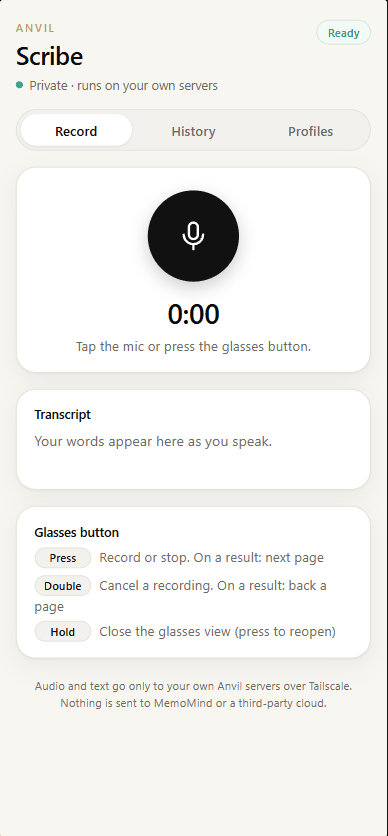
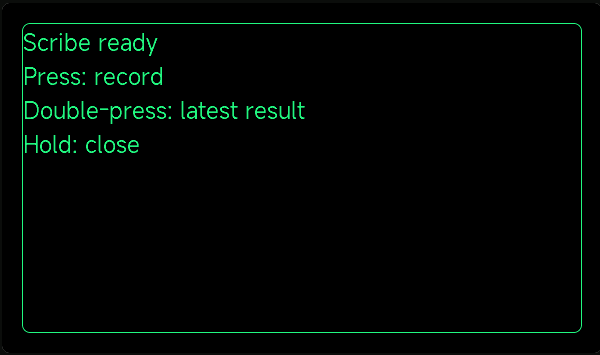
Record
Tap the mic, or press the glasses button, and speak. The transcript appears as you talk, on the phone and on the glasses. Press again to stop and save, or double-press to cancel, which saves nothing.
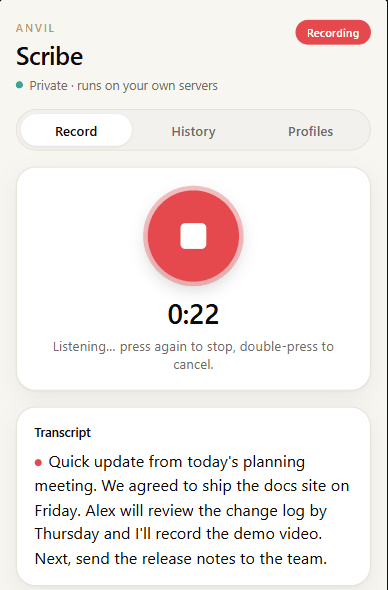
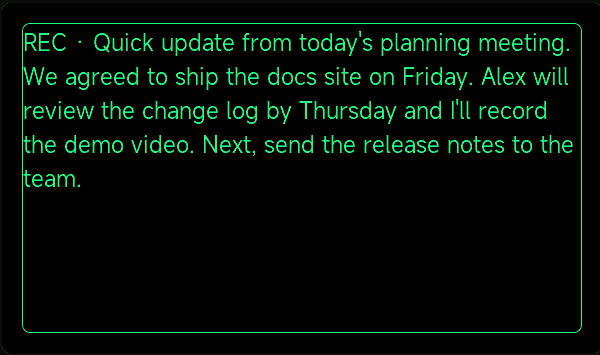
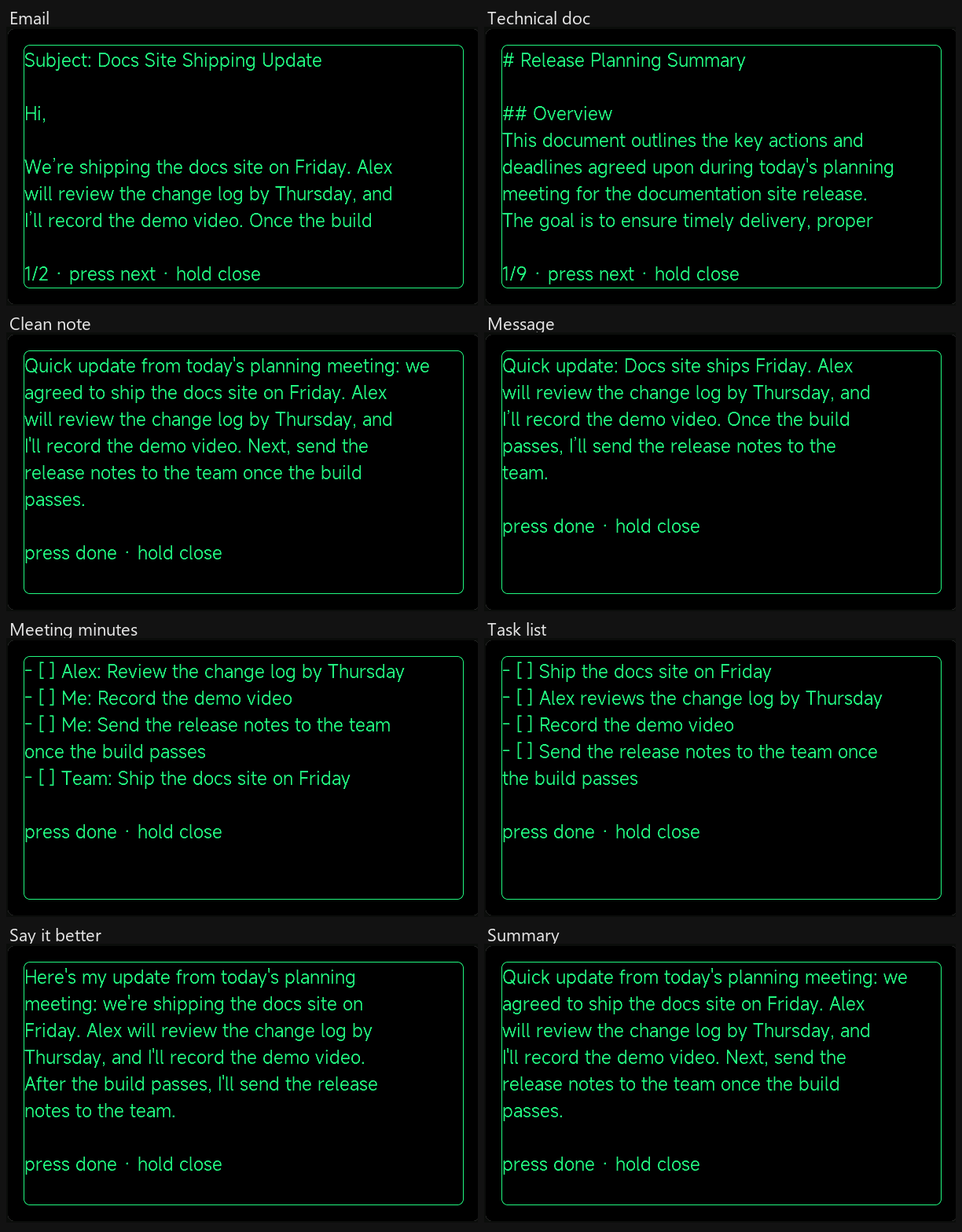
Scribe saves the raw transcript first, exactly as you said it. Then pick a profile, choose a model and tap Rewrite. Each rewrite is added below the transcript with its own Copy button. The latest result also shows on the glasses, split into pages if it is long. Press to read on, and double-press to go back.
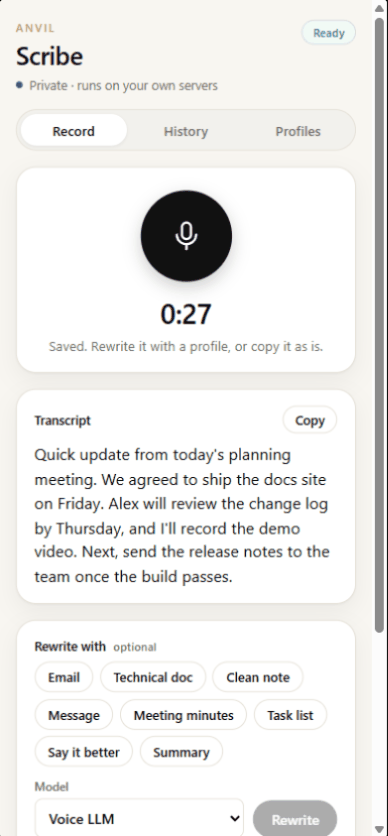
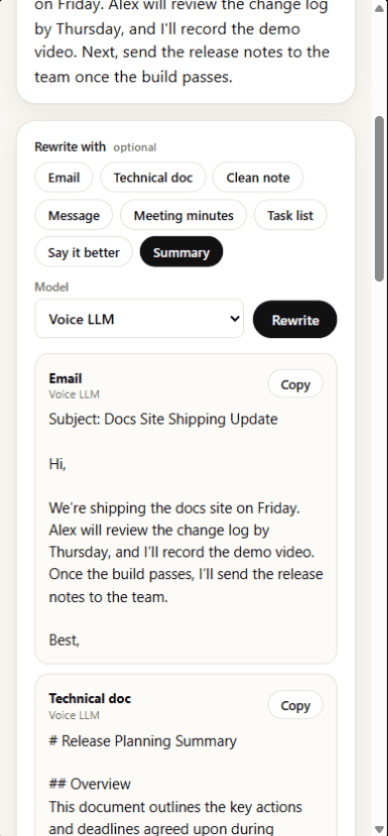
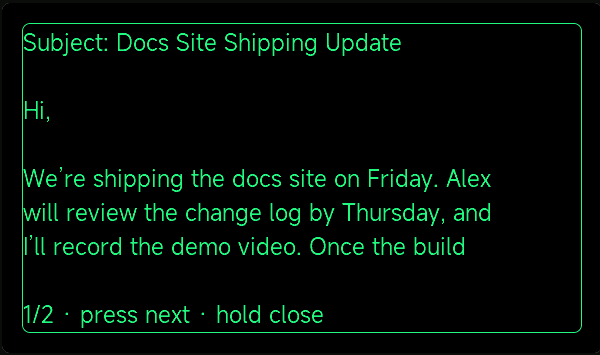
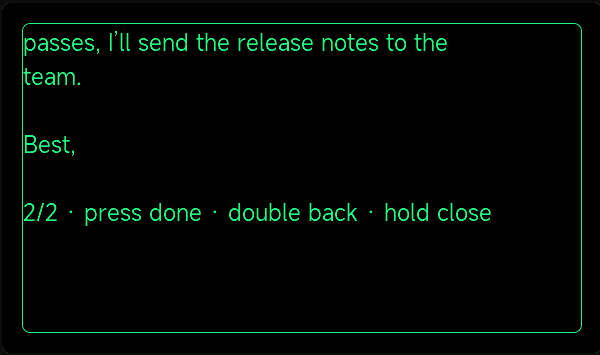
The same memo, rewritten by each built-in profile. Each image shows the first page:
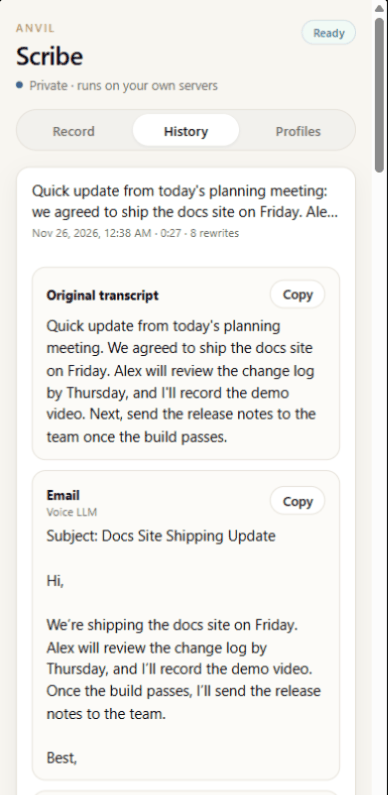
History
Every recording is kept with its length and rewrite count. Tap one to see the original transcript and every rewrite made from it.
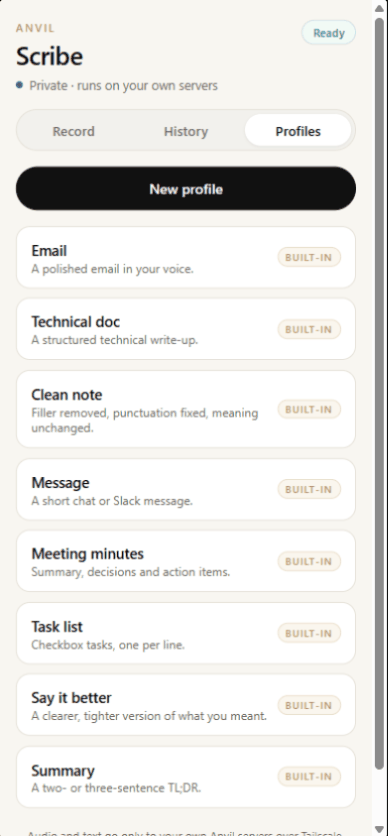
Profiles
The eight built-in profiles are read-only. Open one to read its prompt, or duplicate it as a custom profile and adjust it. "New profile" takes a name, a description, a prompt and a default model.
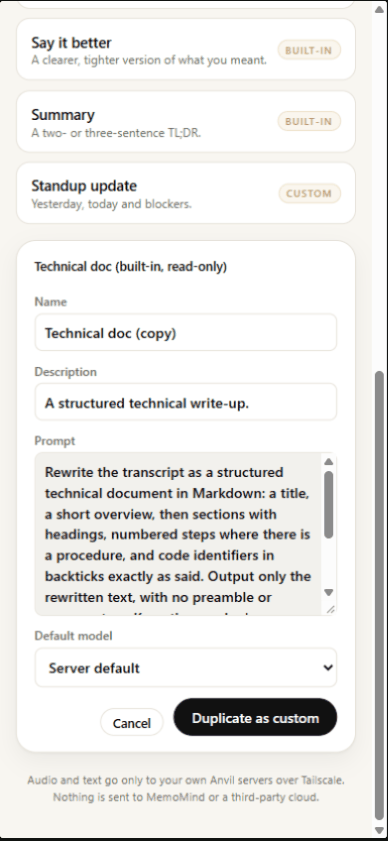
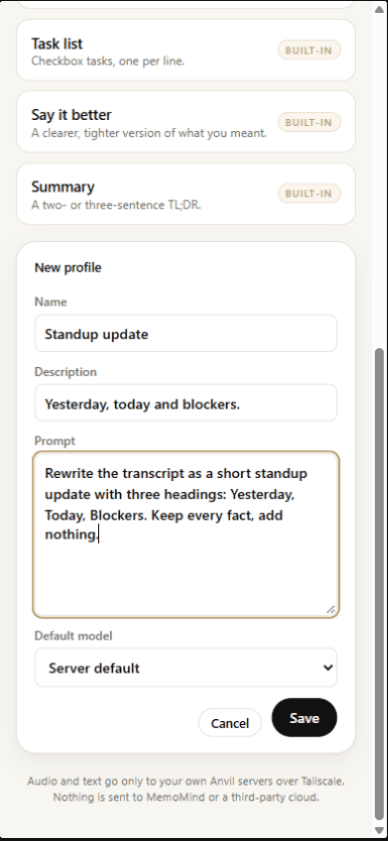
A saved custom profile appears next to the built-ins as a rewrite option.
Go deeper
- Command reference: scribe
- ADR-0048: why Scribe is a gateway client
- The gateway's audio grants: router keys